Sunday, November 16, 2014

App Mashup Volume 2: Pic Collage + iMovie + Google Drive and Coordinate Graph Art: Elementary Edition Update!

http://www.teacherspayteachers.com/Product/Elementary-Graph-Art-Section-1-Graphing-ABCs-1562019
From "Happy Spring" to "Happy Fall", all in one blog post. OUCH. 

I'd say I'm sorry, but... I'm not. 

Honestly life is moving at such a break-neck pace right now that it's a gift just to take a deep breath a few times a day, get some exercise a few times a week, and if I'm REALLY lucky, sneak in a nap here and there.

When I think of how far I've come (and the rest of the world as well) since my first blog post in 2011, I'd say the old Zombie would hardly recognize the new Zombie. I'm guessing you readers feel the same? Can I get an "Amen!"?


For starters, I value my sleep a little more than I used to. Having moved within 2 minutes of all the schools I visit on a daily basis, knowing that I *could* and SHOULD be getting 7-8 hours of sleep, I sometimes actually do sleep 7 hours. So I'm more a figurative Zombie these days than a literal one.

On top of that, I now publish daily help documents, post district technology updates to our LMS, craft style guides, etc. for my job... so coming home and writing additional works... whether they be blogs, workbooks, tweets, or otherwise... is kind of overkill. But, I happened to have a quiet weekend for once, and a clean house (which rarely happens these days!), and I have news to share that is getting me to finally, FINALLY, compose another blog post... drum roll... 
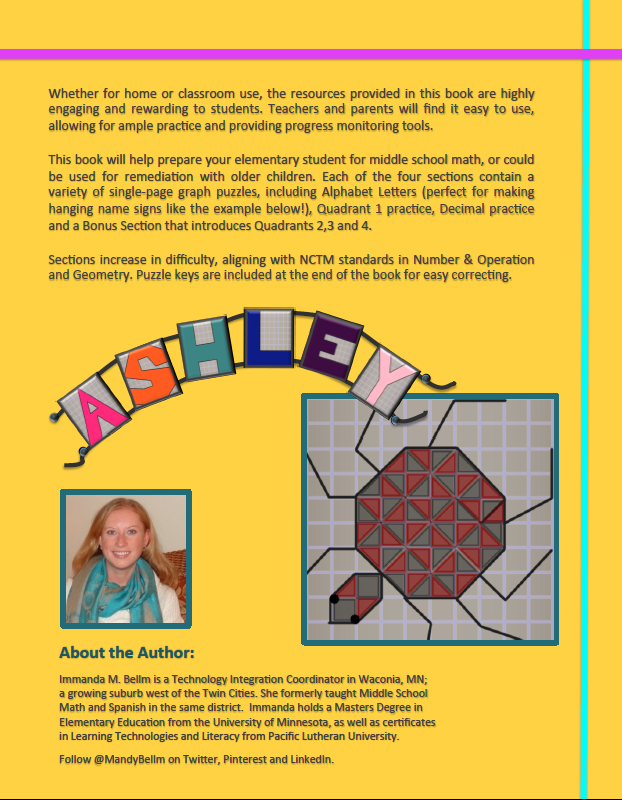
Coordinate Graph Art: Elementary Edition is now in the works! The idea for this book has been stuck in my head for years... ever since I wrote my first edition... but it seemed more appropriate to write Advanced Graph Art first so that those high-flyer students could keep working, than to back-track and start writing for a younger audience. 

I knew I wanted to open with an ABC section of Graph Art, so children could not only practice beginning graphing skills, but could also make a set of their name letters that could be connected into a banner for home or school use. Hence the example on the back cover, which is yet another tribute to my late sister Ashley in the coolest way I could think of :)  LOVE YA SIS!

Enough shameless plugs for my various products... I did have a point to this post... I suppose I should get to it!

Alrighty then - App Mashup Volume 2... I'm currently working with our Elementary Spanish teachers to incorporate our 1:1 fourth grade iPad project into their classes. When you only have 20 minutes per day with each class, it's hardly worth the trouble to get out the iPads, try to train the kids on an app or get to a website, and then have any time left over to learn new content. My solution? Start with an app the kids are already familiar with. Pic Collage. It's free, doesn't require any accounts to be made, and is extremely easy to use. 

Here's an example of a completed Pic Collage. It's like a virtual scrap book page. You choose a background, then overlay stickers, photos from your camera roll, images from the internet, text, and then easily turn/twist/size/layer them to your heart's content.

There is zero limit to a child's creativity... give them a topic and let them go nuts. I'd put this app in the "M = modification" level of SAMR, because there is so much added functionality and student input required in synthesizing together the various pieces of content that they chose in a meaningful way. 

When finished, simply export to your camera roll and email/upload/post it anywhere.

The mashup comes in when you take various Pic Collage images and send or post them to a common location. In this case, I want to use iMovie to compile all the Pic Collages together and then dub an audio track over the entire presentation. Whether you choose to have multiple students work on their own Pic Collage, and then have one master student (or the teacher) compile the images into the iMovie, is totally up to you. 

When you are ready to begin the iMovie portion, you select "Movie" instead of trailer, and then add each of the Pic Collage images into the video in the order you would like them to display. 

The next step is to record the audio to go with each image. If students are involved, you can call them up one by one to speak about their portion (talk loud for the mic!!!). Otherwise, you as the teacher can record your own audio that covers the entire video. 

Last, adjust the length that each image displays, to match the audio clip that pertains to it. Play the whole video back to ensure it is correct, before exporting the final draft to your camera roll. Once you make this step, you will lose any editable features in the compiled video (unless you keep the pieces on your device and in iMovie - which take up a lot of space!). 

To export your video, click back to the main menu for your video. You should see the title, the duration, and the last modified date. 

Click the export box with the arrow pointing upward (circled at left). Then select "Save Video" to export the video to your device's camera roll. From there, you can send anywhere. BUT keep in mind, it's probably a very large file size... so you can't just email it around.

Which brings me to the last step of this App Mashup - sending your project somewhere for an authentic audience. If your school uses an LMS (we use Schoology), you can go into the app and upload the video into a media album, post as an update, or add to your personal/group/course resources. If you don't have an LMS, or want to avoid that step, you can upload your video to Google Drive from the Drive app (either Droid or Apple). 
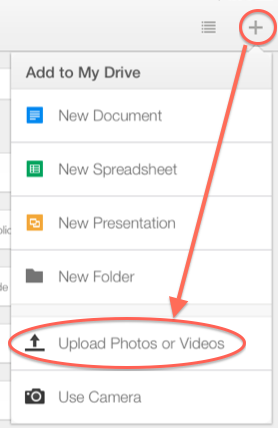
Launch the app, then hit the + button and select "Upload Photos or Videos". Click on "Photos" and then pick the video(s) and other media you want to upload. Click the blue checkmark. 

Then WAIT. Your device will look like it's "frozen", (Hahaha) but it's NOT. It's just thinking. So Let it Gooooooo... maybe watch this hilarious cover while you're waiting. Best ever. Even if you're as sick of the song as I am ;)

Once it's done uploading, you're ready for the final step.  And the most annoying one... because now you need a computer... so boot up your Google Drive and click the "sharing" button on your video. You need to change it from "Private", to "Anyone with the link can view". 

You cannot do this final step from the app (yet!?!?); all you can do is add individual viewers' emails which is too tedious unless it is a student sharing with only one teacher. At any rate, once you have added the viewing audience, you can copy/paste the link to the file, and then post it or email it to any authentic audience, anywhere on the planet... or in cyberspace.

**Please keep in mind, if any students' personal information or photos are present in any of the parts of the video or Pic Collage, you will need to obtain written permission from the student and/or parents (if a minor) before posting takes place. 

That's it for now! I hesitate to give you project suggestions of how you could incorporate this mashup, because your goal with technology integration should *really* be on what your instructional / curricular objectives and learning targets are. If you have decided on those aspects of your assignment, and this work flow fits into what you or your students are doing, I'd love to hear about it!

Post a reply and let me know what worked/didn't work or whatever questions you have about the whole process. 

And don't forget to stop by my TpT store and check out my new unit! :)


Saturday, April 5, 2014

App Mashup Volume 1: Reflector + Laptop + TV and Graph Art eBook + Notability Workflow

Happy "Spring" to one and all! 

I use that word very lightly as Minneapolis just got hit with Snowmaggedon #3 IN APRIL, leading to a 2-hour late start in many school districts on Friday. While I very much enjoyed the extra sleep (Daylight Savings Time hit me like a ton of bricks this year), I did not enjoy the hour of shoveling to make the driveway bike-friendly. Luckily we are poised to hit upper 50's the next few days, and 71 by Wednesday! Hallelujah!

My apologies, yet again, for not posting more over the winter. I've thought about starting app mash-up posts many times and something always seems to get in the way. But no more! The time has come to start networking again, as I gear up to write "Coordinate Graph Art for Beginners" this spring and summer. I'll be posting progress updates and downloadable sneak peeks for my awesome readers (& Pinterest/Twitter followers) as the weeks march on.

Being a Technology Integration Coordinator, naturally I'm getting peppered by questions of "Why don't you release your existing books in e-reader format?" And the answer has always been, because the puzzle is on one page and the graph paper is on the other. Kids would have to toggle back and forth between the graph paper and the puzzle. It is feasible with the digital copies of my books that I just posted on TpT: Coordinate Graph Art: Teacher Edition, Coordinate Graph Art: Student Edition, and Advanced Coordinate Graph Art: Student Edition. Advanced Coordinate Graph Art: Teacher Edition has been posted for some time now.

Purchasing any of my eBooks gives you permission to copy/paste/print/scan/share its contents in unlimited quantities throughout each teacher's courses. This also includes digital devices (e-Readers, posting to online LMS, iPad, tablets, smartphones). I would, of course, appreciate shout-outs to parents of where you found my book, so I sell more ;)  

My existing books are in "print format" so they read best with multi-page selected so that the graphing directions show on the left, and the graph on the right. Then, either the teacher or the students take a screen shot of the graph, import it into an annotation or note-taking app, complete the puzzle, and then submit their work electronically back to their teacher. Or, just show it to your teacher when done! This will make coloring the final product much more engaging and less messy than using pens, markers, or crayons. 

My recommendation for ease of the above: 

1. Buy the eBook edition you desire (either regular or advanced) in both the teacher and student edition. The teacher edition has the keys, while the student edition has the correct page format to "capture" the instructions next to the correct graph paper. You could get away with just the teacher edition by posting the graph paper and instructions separately, and having the students toggle back and forth on the iPad between the screen shot of the directions, and marking up the graph paper in a note-taking app. 

2. Screen-shot or copy/paste the graph you want to assign into your online assignment posting. We use Schoology (which has a paid and free edition), but you can now attach images/files through Remind101 as well. 


3. Students access the online assignment and download the images to their camera roll.


4. Students import the graph page into their note-taking program (Skitch or PaperPort Notes are both free, but I like Notability the best - which is paid). 


5. Students use the writing function to complete the graph picture, toggling back and forth between their note-taking app and their camera roll to find the new point. Once complete, the student could color in the picture as well if desired.

6. Students use the "export" function in their note-taking app to submit their work back to the teacher, via Schoology, email, or whatever other tool you use to collect work. No paper needed!


I'd love comments back, as to how this procedure works out for you. 

ANYhoo, I was originally planning on blogging about using Reflector app's multiple display mode in the classroom and/or at home, to see what your students are up to on their devices, and to allow them to show their work to the class as they complete it. Watch the video below for an example:


How this all started: I purchased a MacBook Mini Display to HDMI adapter at BestBuy about a month ago so my husband and I could watch movies from my Amazon Instant Video account on our giant 60 inch HDTV. I have since heard that ChromeCast works just as well. I finally hooked it up for my boys on the upstairs TV so they could watch Frozen, while my husband and I watched our own Will Farrell movie downstairs (I won't say which one, but given the blog posting date, you can probably figure it out ;)

This morning I had an epiphany: Why don't I use this same setup and turn on Reflector App on my iPad, so the kids could show their apps & games on the big screen as well? My kindergartener is absolutely LOVING the Minecraft Pocket Edition iPad app, but I only allow him to use the "creative" mode. It's like Lego's on steroids... he can build blocks, dirt, rivers, bridges, "lay animal eggs" to create chickens/sheep/cows/pigs, as well as dig holes and fly around in the sky. The animals make noises, move around, eat, and can even swim. It's a hoot! You never know what they're going to do. They can also get hurt, fall, or stuck in holes, so we've had lots of good discussions about "taking care of his virtual pets". 

It's hard to see the game just looking over the player's shoulder though, which is why the Reflector piece is nice. It also makes the game more interactive, blowing it up to 500% on our TV or on a classroom Smartboard. For a kindergartener with limited motor skills, he has made several amazing cities with their own themes (bridge city, animal city, car city, just to name a few). While this app is $6.99, it's totally worth it, compared to the small fortune most parents spend on Lego kits. If you really want to see the potential of Minecraft, check out these amazing virtual creations.

Alas, I digress. Back to the point... So I have my MacBook hooked up via HDMI adapter to our TV, I also have the WIFI connected on all our devices via the same home network. I then open the Reflector program on my computer (which you can try out and/or pay for the full Mac or PC version at www.airsquirrels.com) and set it to "no password". 


The next step is to turn on Airplay on each device you wish to reflect. This could just be your teacher/parent machine, or student iPads or Smartphones. They do need to be logged onto the same WIFI network in order for this to work. You should see their display pop up on your computer monitor once they toggle the "mirroring" button from OFF to ON. The device sound should also begin playing, so you may want to ask them to silence the app.


You can get this going on several student devices at once; however, the more devices that are mirroring, the smaller their screens will get, and the more likely your WIFI connection will make Reflector glitch out or lose the sound feed. Once you do have all the devices reflecting on your screen, you can move them around, resize and reposition them, and then continue working on the other sections of your computer. 

Whether you choose to use this tool as a monitoring function (in class or as a parent) to keep an eye on students as they work, or as a display function to model and discuss what a student is working on, it is a fantastic way to get to those "modification" and "redefinition" tasks on the SAMR model. You are creating a collaborative, interactive work space in which not only the teacher can display a website or Smart file on one side of the screen, but students can input their own work products to enrich the classroom learning experience. 

Now, if you're REALLY tech savvy, maybe you have ScreenCast-O-Matic running on your computer at the same time; so not only are you making a collaborative lesson, you could be recording the whole presentation to post later on your online classroom learning space. The possibilities really are endless. 

One last thing... when you're done, MAKE SURE you have students not only TURN OFF their AirPlay, they also need to CLICK THEIR DEVICE next to the sound bell, to stop projecting audio to your computer. Or, easier yet, simply shut down the reflector program on your computer which will detach all devices.

Thanks for reading! Good luck with your collaborations! I'd love to hear all about them so I can share with teachers in my district.


Tuesday, December 17, 2013

Zombie Migration(s) Complete


Happy holidays everyone! I give you the wonderful present of discounting my new books, Advanced Coordinate Graph Art for Grades 6-8 & Advanced Coordinate Graph Art: Student Edition down to the same prices as my first books! ($14.99 teacher, $7.99 student) That's right! Five chapters for the price of FOUR! Give Amazon a couple days to update the pricing, and then you're good to go with hopefully an abundant stack of Amazon.com Christmas gift cards from your students ;)

As you may have anticipated from my total lack of posting in the last few months, the Zombie House Listing Experiment was a brain-smashing success. Our house sold in under two months, and we somehow closed in the old & new houses exactly a week apart. I have no data one way or another if our buyers used the QR code I provided and watched our video tour repeatedly until they put in an offer, but the video does have 25 hits! So it's definitely not just me viewing :) 

At any rate, to any teachers out there who are thinking of listing their house during the school year, I would say, "Go for it!" IF you have at least a week's break prior to prep your house for listing. It's really not that hard to keep the house clean, once it is clean. Or at least it's only hard when you have to get it back to that uber-clean state in time for a showing. And we kept ours in that state of semi-clean-ness for almost 2 months straight! With 4 pets! So yes, go for it! Just bear in mind, you will be kissing any and all spare seconds of free time "good bye".

Teacher-friendly Packing Tips:
-Try out a furniture planner site to see where your stuff will actually fit in your new house. Major reality check for me. I used HomeStyler with great success. The house listing should have dimensions for each of the major rooms to get a good floor plan built.
 
-Steal boxes from the lunch & copy room whenever possible (although they are usually happy to give them away)

-Start packing non-essential items (like cats) first, and stuff all those boxes in the back of the garage. Make sure to label the boxes with where they are going in the new floor plan!

-Avoid packing on school nights. Unless you're really
motivated. Or you have just had the final inspection and are really excited to pull all the boxes out of their secret hiding places. 

-Make the kids pack their own toys. We had piles of boxes out labeled "play room" or "bedroom" or "garbage" or "donate", just like Toy Story 3. I tried really hard not to think about that movie while we worked, how many broken/worthless toys found their way into the trash.

-By luck of the draw, although you may want to plan this, we had just had a ginormous garage sale a month before we listed our house, which cut back greatly on purging or packing JUNK.


And that's pretty much all she wrote on that. In the month since we moved, we have settled into our old semi-messy ways, gained half an hour of sleep, eliminated a cumulative hour of driving time to work/school, and to top it all off, hung some *kind of pathetic* Christmas lights. Right before 8+ inches of snow fell.

  
Now onto the plural part of "Migration(s)": I have completely "gone Google"! In addition to moving my physical house, I have also transitioned my email, calendars, notifications, groups and hordes of archived folders over to the Cloud that is Google. Our district is leaning this way anyway... let me tell you why I jumped on board early: 

1. Starting the process mid-year gives you extra time to migrate any saved/important emails you might need. After getting tired of logging into Outlook to reference filed emails in folders, I got smart and downloaded the "Eagle Filer" program to make copies of all my Mac-formatted emails. I now have a searchable hard-copy on my desktop. 

2. Re-creating "Groups" in Google is easy, as long as you've emailed the people beforehand. Those of us on Macs have been frustrated anyway that Macs don't play nicely with Outlook Groups, so this was a nice change.

3. Re-creating "Events" in my Google Calendar was semi-easy, with an easier-to-use recurring appointment calendar... especially with the "Bulk Action Tool" Chrome App that cleans out appointments during holiday/vacation breaks. I say semi-easy because Google Events do NOT like Daylight Savings Time. Either my calendar has to be set to Eastern Time, or all my appointments show at the wrong time of day. So all my appointment bells "ding" an hour early. Fairly annoying.

4. The Google Mail interface is *pretty* :)  I added a beach "theme" so every time I log into my gMail, I get a different rotating background but can still see my email on top of it. So much easier on the eyes. 

5. Spam is eliminated! Once you shut off your forwarding address, all those pesky retailers and spammers are off your trail. For the time being. Give it a few years, they'll be back. 

6. Ease of communicating with students who also have gMail at school. Not just via email, but also with "hangouts" and G+ and whatever other social gadgets and gizmos you want to add to your profile. Works great with Schoology too. 

That's all for now! I have a new post planned soon for all the cool apps and tools I just learned at the latest Minnesota TIES convention. I promise, it won't be two months until you hear from me again. Maybe just two weeks this time ;)

Saturday, October 5, 2013

Zombie Home Listing Experiment!

Happy Fall to one and all! 

We are selling our house in Montrose, MN in the hopes of moving to Waconia, MN where I teach (and where my oldest son now attends school). In my efforts to document the new fall decor on my front step, I created my own zombie moment. Check out my reflection in the door glass. It LITERALLY looks like a zombie is coming to attack my house. 

The start of the school year has been absolutely insane! Between deploying 800+ iPads, to trouble-shooting WIFI, helping with app downloads, dealing with password resets and then all the fun at home of preparing our house for selling, the past 5 weeks have raced by.

Now that I am in a position of helping others with their classroom and not having my own students' data to monitor, I'm kind of going into OCD withdrawal. So I have a little experiment to exercise my slowly atrophying *math teacher brain cells*... drum roll.... 

Question: "How much does social media networking affect the sale of a home?"

Data: We have a fabulous realtor, a great MLS listing, nice photography, a clean and updated house (granted it only has a 2-car garage, but there's not much we can do about that), a great backyard perfect for a young family, located on a quiet cul-de-sac in small town 40 mins. west of the Twin Cities... HOW FAST can we find the right family who will appreciate what our house has to offer?


As you can see from our daily MLS site hits (our listing is located here) we started out strong and then have been kind of putzing along for the last week and a half. I feel as though it would be helpful if someone would set up a "match.com" site for houses, where people not only could put in their house specifications, but also click on personality/family preferences like "includes workout space" and "playground/sandbox" and "huge walk-in closets" and "we have small & clean pets" and "granite countertops and stainless steel appliances really don't matter to us!".

I continued my professional development into technology integration by recording and editing a superbly amateur virtual tour using Windows Movie Maker software. Easy and fun!! Click here to watch:

Virtual Tour: http://www.youtube.com/watch?v=zusVxslqMiQ&feature=youtu.be

Task: Zombie fans unite and forward our listing to anyone you know in the greater MN area who might be looking for a 2000 sq.ft. 3 BR/2BA home. Let's see how many listing "hits" and "saves" a girl can get, just by word of "digital mouth".

I will share an in-depth graphical, statistical analysis of the results at a later date... stay tuned.

Monday, August 26, 2013

Advanced Graph Art is now up on Amazon.Com!


Get your purchase orders ready! My new book is already up on Amazon.com! And it's already on SALE too!! List price is $16.99 and Amazon has it reduced to $15.18. (not sure what the 18 cents is all about)

Click the picture above to purchase the teacher edition and here to purchase the student edition.

Also, as I previously blogged, many teachers will want to use the instructional sections for whole-class teaching on Smart board or projector. To make this process more engaging, I'd recommend purchasing the complete Teacher's Edition eBook, just listed in my TpT store by clicking here.

Eventually I'll get the stand-alone chapters 5 & 6 on TpT as well. Right now, I'm stuck at work away from my files... and I have a full basement and stairs of carpet to wet vac in order to prep my house for selling!?!? And yes, it is 95 degrees out by the way, with a heat index of 110. My poor husband just texted me that it is 85 degrees and extremely humid inside our house, so the boys are all going out to dinner. So maybe the carpets won't get done tonight. Or I might just melt like the wicked witch.

Enjoy your first few weeks back! And here's another shameless plug to buy my book!!!

Gracias,
-Zombie


Friday, August 23, 2013

Advanced Graph Art for Grades 6-8 & Student Edition now available!


Happy Fall everyone! I hope your back-to-school prep has been rejuvenating and not to stressful. I have been slowly transitioning into my new role as a tech integration coordinator all summer, which is bittersweet, but also really exciting. In addition to work changes, we also successfully resurfaced and repainted the deck, and redecorated two bathrooms. Summer went by in the blink of an eye, as usual. 

Good news for you all, as you head back to your classroom, is that you have a glut of new fun math activities available in my new book! The first edition contained 25 puzzles to walk your students through the basics, with a taste of transformation challenge. The new second edition (click either picture above) will take your students' skills to a much higher level of understanding in the area of coordinate plane geometry. 

Both books are available for purchase now on CreateSpace.com. Rest assured, the Amazon.com listings will be up in a week or so for schools who require purchase orders for online curriculum orders. You can also purchase the first 4 chapters on TpT. I will be posting the last two chapters, as well as the full book, hopefully on Sunday this week if you are itching to get your hands on a digital copy. The really nice thing about having both the hard copy edition and the digital copy is that the digital keys and instructional segments are full-color. It makes instruction on a Smart Board or projector really come alive. So buy both!! :o) 

Stay tuned for updates. I will post as soon as I can with more info about the new TpT listings and when Amazon.com is up to purchase. Enjoy your first few weeks back!

Here are the listings:

Teacher Edition: 

Student Edition:

-Zombie Out

Monday, August 5, 2013

Advanced Coordinate Graph Art: Sections now available on TpT


Happy August! Where did the summer go??

I want to extend a heartfelt thanks to my wonderful editors who have gone through sections 1-4 with a fine-toothed comb, offering lots of helpful suggestions and (gasp!) even catching a few typos.

While I still have Section 5 and Section 6 to write, I am happy to announce that Sections 1-4 are now available on TpT! Each is listed at $2.99, same as my previous book. 

I am hoping to finish the rest of the book in the next two weeks before heading back to work. Or it's not going to get done. Send good vibes my way! 

Click here for my TpT store front.

Each section contains preview images as well as a preview section that you can download and try out. If you are liking all of the sections, you may want to hold off purchasing as it will be cheaper to buy the eBook at $14.99 than 6 sections at $2.99. 

Meanwhile, here are some fun free samples to keep you occupied. Remind me to try not to give away the entire book before it even goes to print ;)